Supabase Database Credential Rotation
End-to-end guide to rotating a Supabase database role's password automatically with SikkerKey's managed-secrets agent.
This guide walks through setting up automated password rotation for a Supabase database role. By the end, SikkerKey will generate a new password on a schedule, the agent will apply it to Supabase via the session pooler, and your application's database credentials stay fresh without human involvement.
Two database roles are involved:
sikkerkey_rotator— a SikkerKey-specific admin role withLOGINandCREATEROLE. Its password is set once and doesn't rotate. Its only job is to runALTER ROLEagainst the managed role.- The managed role (example:
append_user) — the role your application connects to the database as. Its password is what SikkerKey rotates on a schedule.
Keeping these as two separate roles is what makes rotation safe: the admin credential SikkerKey uses to authenticate is never the credential being rotated, so the agent never locks itself out.
Prerequisites
- A Supabase project you have admin access to
- A SikkerKey vault (managed secrets are available on every plan)
- A machine with network reach to Supabase's session pooler (IPv4 works through the pooler, so most environments work out of the box)
You do not need Supabase's paid IPv4 add-on. The session pooler is IPv4-compatible by default.
1. Create the admin rotator role
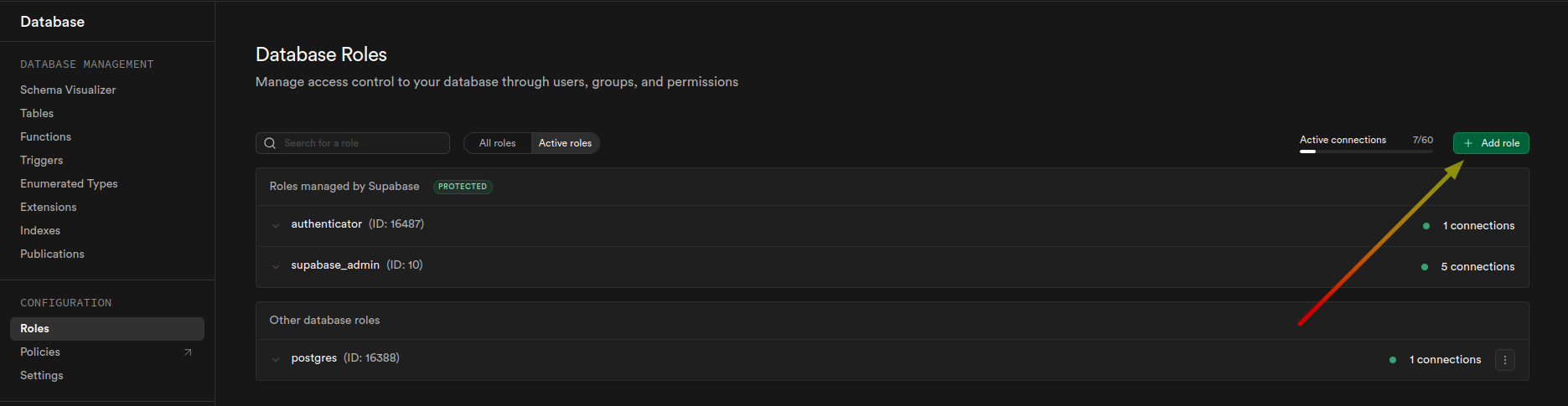
In your Supabase dashboard, go to Database > Roles. Click + Add role in the top right.
Name the role sikkerkey_rotator. Toggle on User can login and User can create roles. Leave the rest off. Click Save.
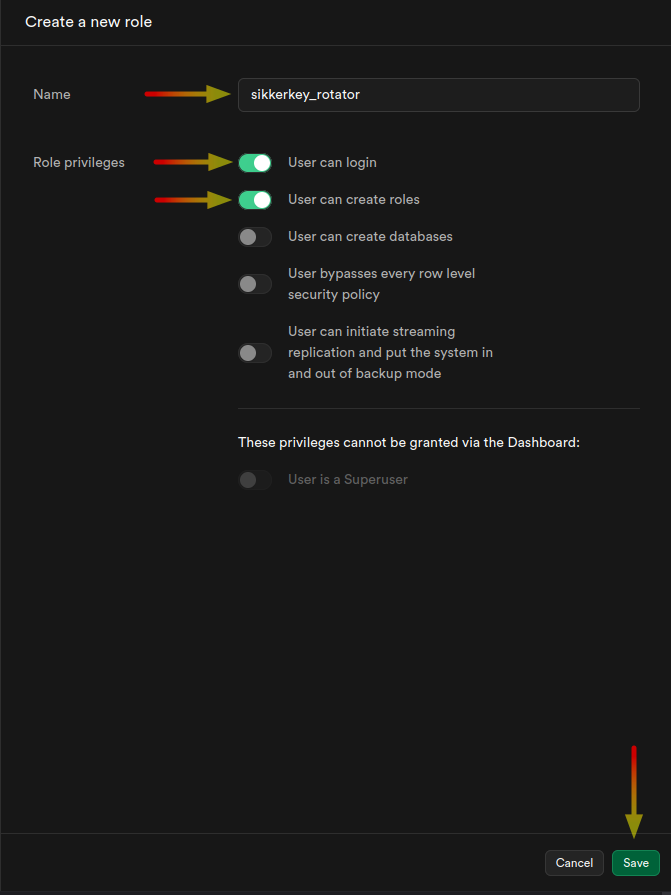
The Supabase dashboard does not let you set a password on role creation. You'll do that via SQL in a later step.
2. Create the managed application role
Still on the Roles page, click + Add role again. This is the role your application will connect as. Name it whatever fits your app; this guide uses append_user as the example. Toggle on User can login only. Everything else stays off.
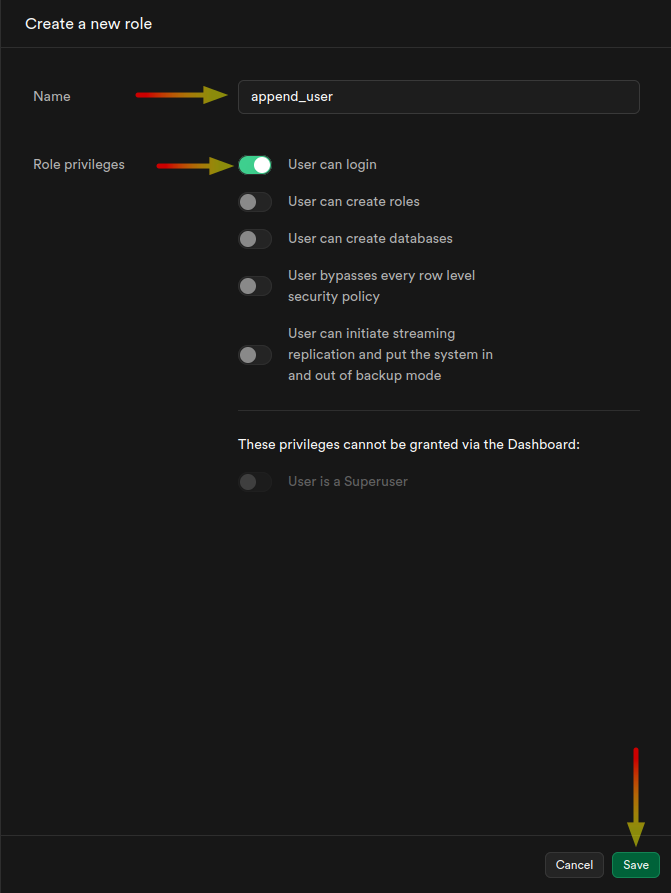
Click Save. The role exists but has no password yet. That's fine. SikkerKey's agent sets one on the first rotation.
3. Set the rotator's password and grant admin option
Open the SQL Editor from the top-right toolbar in Supabase.
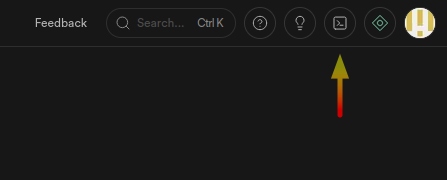
Run these two statements:
ALTER ROLE sikkerkey_rotator WITH PASSWORD 'your-strong-password-here';
GRANT append_user TO sikkerkey_rotator WITH ADMIN OPTION;
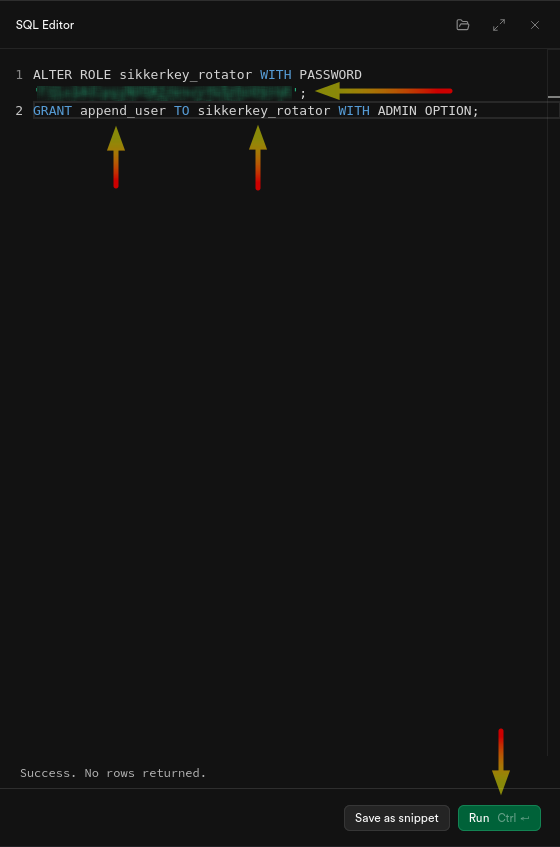
You should see Success. No rows returned. at the bottom. Two things happened:
ALTER ROLEsets the rotator's password. You'll paste this exact password into SikkerKey in a later step, so keep it handy.GRANT ... WITH ADMIN OPTIONgivessikkerkey_rotatorauthority overappend_user. On PostgreSQL 16+, a role withCREATEROLEcan only change the password of another role if it either created that role or has admin option on it. Since you createdappend_userthrough the dashboard aspostgres, the explicitGRANTis required.
If you name your managed role something other than append_user, replace the name in the GRANT statement accordingly.
4. Get the session pooler connection details
Click the Connect button at the top of your Supabase project page.
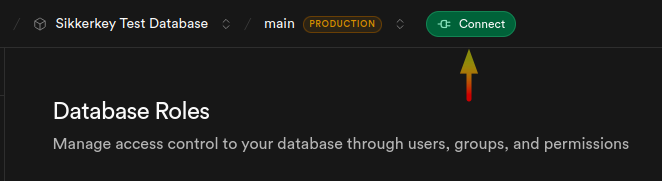
In the modal that opens, scroll to the Shared Pooler section. Supabase gives you both a connection string and the fields broken out individually.
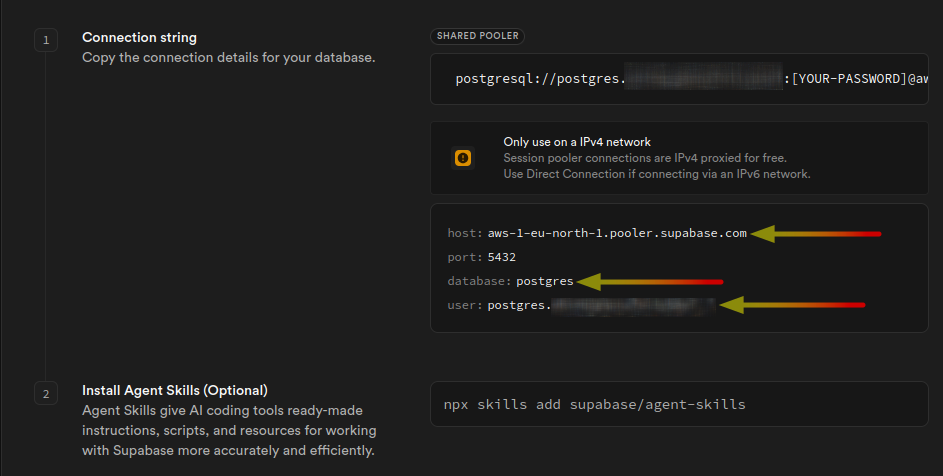
Four pieces of information to take note of:
- host: e.g.
aws-1-eu-north-1.pooler.supabase.com(theaws-Nand region part will match your project) - port:
5432(session mode; do not use 6543, which is transaction mode) - database:
postgres - user: the
userfield displayspostgres.<projectReference>. The part after the dot is your project reference (the lowercase alphanumeric string). For example, if Supabase showspostgres.vhioqcgannxfollybayf, your project reference isvhioqcgannxfollybayf.
Note: Supabase's own modal shows postgres as the example user because that's the default role most people connect as. For SikkerKey, you'll use sikkerkey_rotator as the admin username; the project reference extracted here is what gets appended to it by SikkerKey automatically.
You'll paste these into SikkerKey in the next step.
5. Create the managed secret in SikkerKey
In the SikkerKey dashboard, open the Secrets page for the project you want this credential to live in, then click New Managed Secret.
Connection details
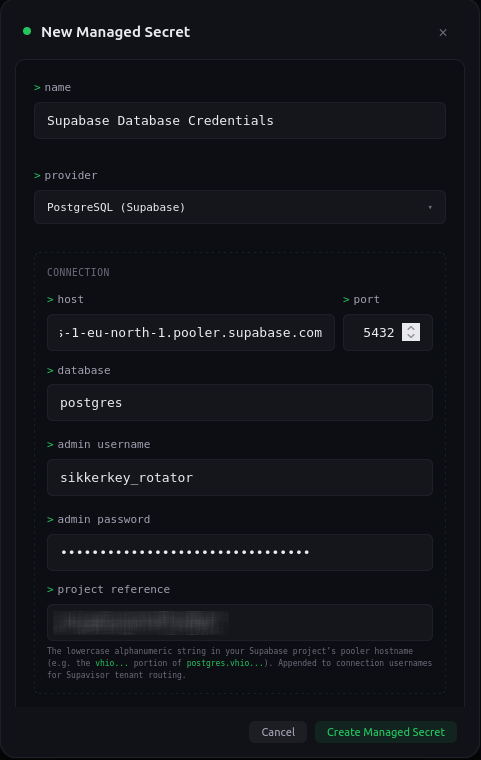
Fill in:
- Name: something descriptive, e.g.
Supabase Database Credentials - Provider: select PostgreSQL (Supabase). This variant knows about Supavisor's tenant-suffix convention.
- Host: the pooler hostname from the previous step, e.g.
aws-0-eu-north-1.pooler.supabase.com - Port:
5432 - Database:
postgres - Admin username:
sikkerkey_rotator. Enter it plain, without the project-reference suffix. SikkerKey appends the suffix automatically when the agent connects. - Admin password: the password you set via
ALTER ROLEin step 3. - Project reference: the alphanumeric string you extracted from the pooler username (e.g.
vhioqcgannxfollybayf).
Managed credentials
Scroll down to the Managed Credentials section.
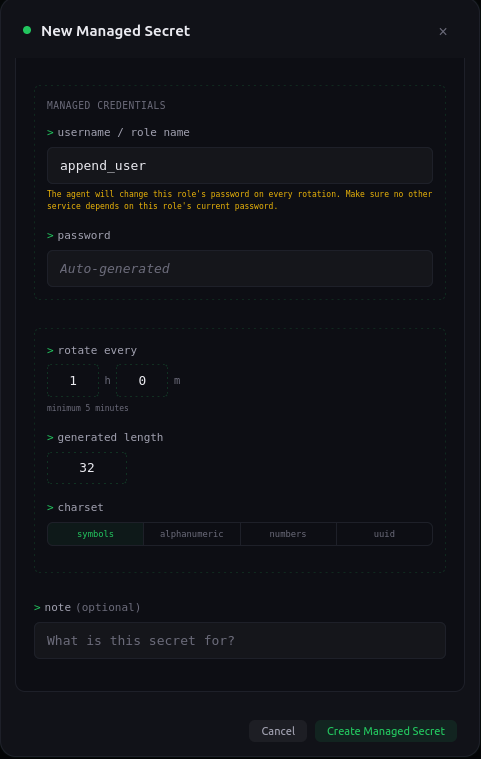
Fill in:
- Username / role name:
append_user(the managed role you created in step 2). Plain name, no project-reference suffix. - Password: leave blank. The agent generates the first password on its first rotation cycle.
- Rotate every: pick an interval. Minimum is 5 minutes.
- Generated length: 32 is a reasonable default.
- Charset:
symbols(strongest), oralphanumericif your application has trouble with special characters in passwords.
Click Create Managed Secret. SikkerKey creates the structured secret, schedules the first rotation, and waits for an agent to claim it.
6. Install and start the agent
On any machine with network reach to the Supabase session pooler (your production host, a dedicated rotation box, even your laptop for testing), install the SikkerKey CLI if you haven't already, then bootstrap a machine identity against your vault (see the CLI setup guide if this is new to you).
Once the machine is bootstrapped and has been granted access to the managed secret, start the agent:
sikkerkey agent start --secret sk_xxxxxxxxxx
You should see output like:
Fetching sync config for sk_xxxxxxxxxx from SikkerKey...
Testing PostgreSQL (Supabase) connection to aws-0-eu-north-1.pooler.supabase.com:5432...
Connection OK.
Agent running for secret sk_xxxxxxxxxx via PostgreSQL (Supabase) (polling every 10s)
When the first rotation fires, the agent logs it, applies the new password to append_user, verifies by opening a fresh connection as the new credentials, and confirms back to SikkerKey:
[14:39:26] Pending rotation detected (id=933d89f5). Applying to PostgreSQL (Supabase)...
[14:39:26] Rotation confirmed and promoted.
The managed secret's panel in the dashboard will show agent status Healthy and the version counter will tick up on every rotation.
7. Wire your application to read the rotated credentials
The managed secret is structured with two fields, username and password. Your application fetches them the same way it would any other structured secret. From the Kotlin SDK:
val sk = SikkerKey()
val creds = sk.getFields("sk_xxxxxxxxxx")
val dbUser = creds["username"]  // "append_user"
val dbPass = creds["password"]  // the current rotated password
For the connection string in your app, remember that Supavisor needs the tenant suffix. Construct the username as <username>.<projectReference>:
val connUser = "${creds["username"]}.vhioqcgannxfollybayf"
val connStr = "postgres://$connUser:${creds["password"]}@aws-0-eu-north-1.pooler.supabase.com:5432/postgres"
Or if you're using the direct connection (only works if you have the IPv4 add-on), the plain username is fine:
val connStr = "postgres://${creds["username"]}:${creds["password"]}@db.vhioqcgannxfollybayf.supabase.co:5432/postgres"
See the SDK docs for the equivalent in Go, Python, Node.js, and .NET.
What the agent does on every rotation
- Generates a new random password of the configured length and charset
- Opens an admin connection as
sikkerkey_rotator.<projectReference>through the session pooler - Runs
ALTER ROLE append_user WITH PASSWORD '<new-password>' - Opens a fresh connection as
append_user.<projectReference>with the new password to verify it works - On verify success, confirms back to SikkerKey, which promotes the pending value to the live secret
- On verify failure, rolls back by re-setting the previous password, and marks the rotation as failed
Applications that read the secret after the agent confirms get the new password. The old password stays valid until ALTER ROLE fires, so there is a brief window where both would work against the database, but once rotation completes, only the new one does.
Troubleshooting
connection test failed: ... network is unreachable
You're probably connecting to the direct-connection hostname (db.<ref>.supabase.co) which is IPv6 only without the IPv4 add-on. Switch the host to the session pooler (aws-0-<region>.pooler.supabase.com).
no tenant identifier provided (external_id or sni_hostname required)
The admin username is missing the project-reference suffix. This should not happen if you used the PostgreSQL (Supabase) variant and filled in the project reference. If you configured manually, make sure to use the provided variant instead of plain PostgreSQL.
permission denied to alter role
The GRANT append_user TO sikkerkey_rotator WITH ADMIN OPTION step was skipped or failed. Run it again as postgres in the SQL Editor.
password authentication failed for user "sikkerkey_rotator"
The password stored in SikkerKey's managed secret doesn't match the password set on the role in Supabase. This usually happens when ALTER ROLE is run after the managed secret was created. Fix: delete the managed secret in SikkerKey and create it again with the current password.
First rotation succeeds, later rotations fail
Something outside SikkerKey changed the append_user role (dropped, recreated, renamed, or had its grants altered). Check the agent_status_change and sync_push entries in your audit log for the error detail.
Security notes
- Never use
postgresas the admin role.postgresis Supabase's platform credential. Using it for managed secrets means any out-of-band password reset on Supabase's side (including Supabase's dashboard reset button) breaks the agent. - The
postgresrole itself cannot be rotated by SikkerKey's agent on Supabase. Supabase restricts customer roles from managingpostgres. If you need the project-level database password rotated, use Supabase's dashboard; SikkerKey's rotation path targets customer-managed app roles. - Every rotation is audit-logged as
secret_rotate. The rotator's confirm and reject events are recorded undersync_pushandsecret_rotate_deniedrespectively, with the acting machine ID and source IP. sikkerkey_rotator's credentials don't rotate. If you ever need to change its password, update it in Supabase viaALTER ROLE, then update the managed secret's admin password in SikkerKey (currently by re-creating the managed secret) so the two stay in sync.